

2. Publish and bind your account
OA6–OA8: publish the enterprise custom app and wait for administrator approval, bind your Feishu or Lark account in DataScaler, and check Q&A and delivery settings.
This page covers OA6 → OA8. Before you start, complete OA1–OA5 in Create and configure the app.
OA6. Publish and wait for administrator approval
Submitted does not mean ready to use
Enterprise custom-app publishing requires administrator approval. Contact your company's Feishu or Lark administrator, not a DataScaler administrator. Wait until the version is approved and live before binding.
Feishu: 应用发布 → 版本管理与发布 → 创建版本.
Lark: Version Management & Release → create a version.
- Enter a version number, such as
1.0.0for the first release. Release notes can say “Connect the DataScaler brand insights bot”. - Check Bot capability, the OA4 permissions, and the OA5 event/callback settings.
- Under Availability / 可用范围, include yourself and the colleagues who need access now. This controls who can open the bot; it is not the brand recipient list.
- Save, submit the release and ask your enterprise administrator to review it. If rejected, address the review feedback and resubmit.
- After approval, confirm the version is published. Search for the OA2 bot name in your Feishu or Lark client and open a direct conversation.
Feishu: version and publishing screenshots
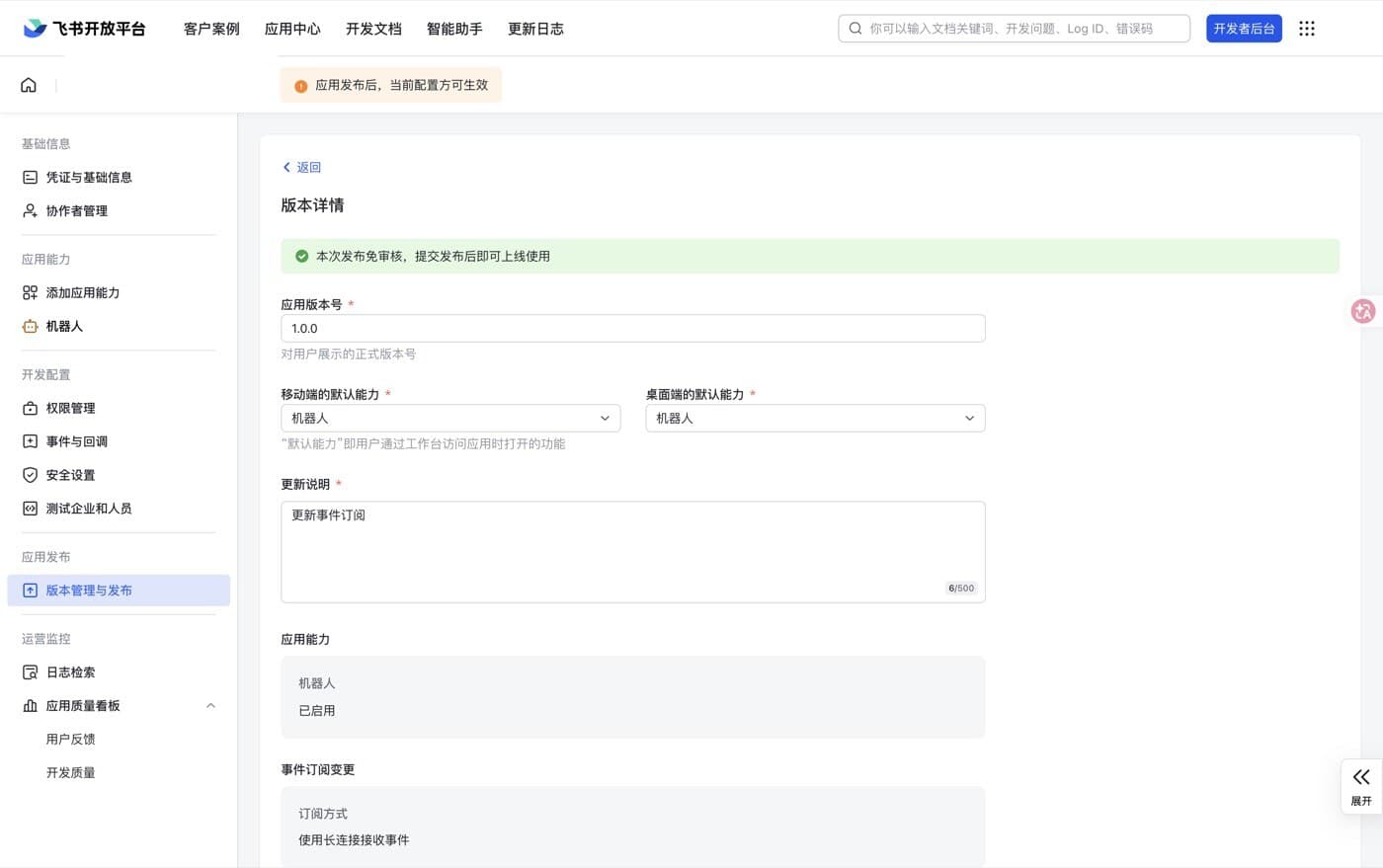
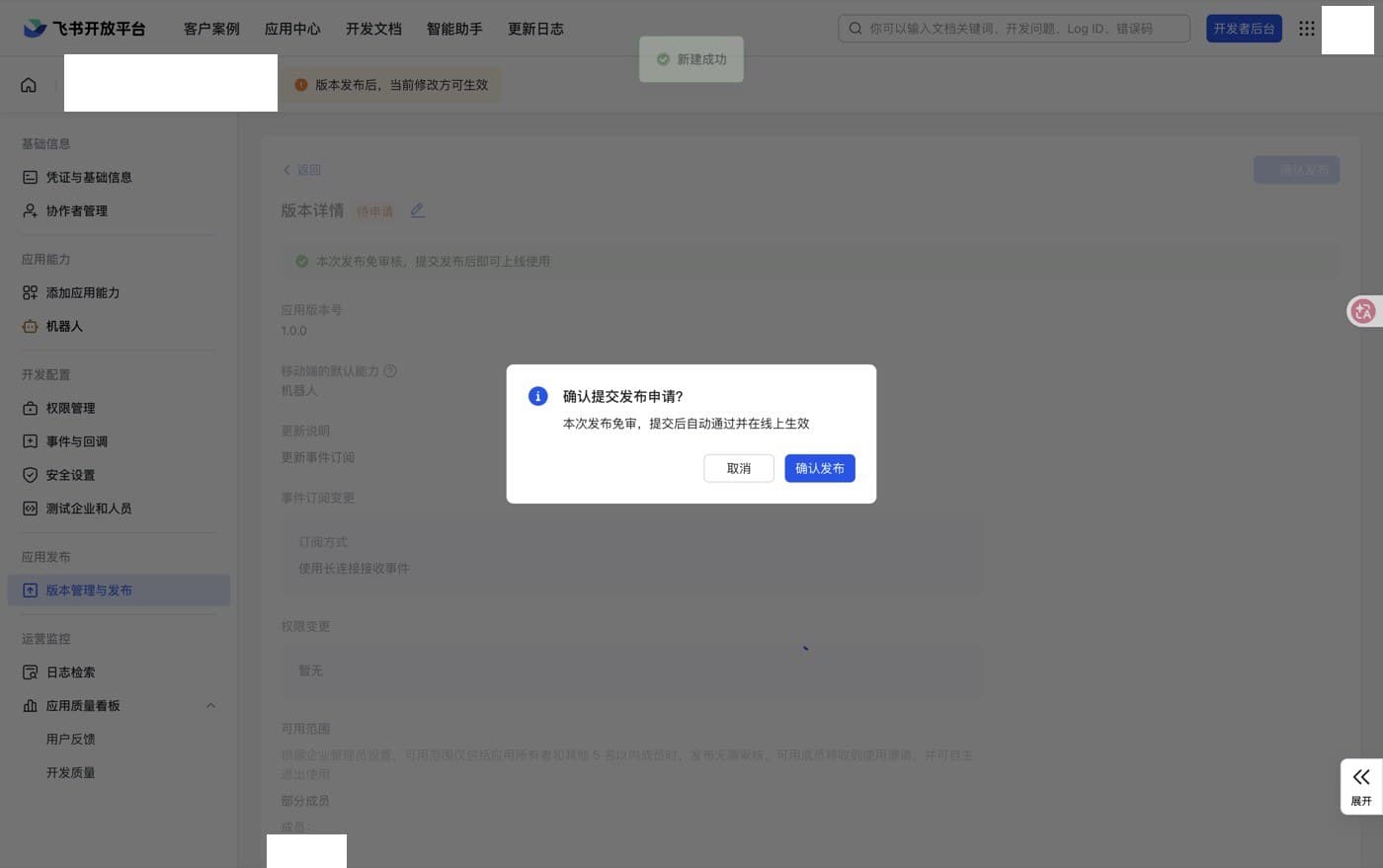
Ready to continue: The version is live and you can open the bot. Later changes to permissions or event settings also require a new release and approval.
OA7. Return to DataScaler and bind your account
- In the OA1 dialog, select Verify and complete setup.
- After verification, copy the one-time binding code. If Create binding code appears, select it first.
- Using your Feishu or Lark account that should receive messages, open a direct conversation with the new bot and send only the code, with no extra text.
- Wait for the bot's reply, then check that DataScaler confirms the OA account is bound.
Ready to continue: Account binding is complete, not just app verification or “Account pending”. Generate a new code if it expires rather than resending the old one.
OA8. Check that it works
- Ask the bound bot a question, such as “Summarize recent customer feedback for [your brand name].” Replace the placeholder with your brand.
- Confirm it answers about that brand rather than asking you to bind or reporting missing access.
- Return to the report and open OA update management from the configured connection. Confirm your account under Brand push accounts and check that the subscriptions you want are not paused.
Setup is complete: Direct-message Q&A works, and recipient/subscription settings are correct. Binding does not immediately resend a report: delivery follows report completion, weekly schedules or alert conditions.
Next step
To let colleagues receive updates too, continue to Step 3: Add recipients. For errors, see Troubleshooting.
1. Create and configure the app
OA1–OA5: create a Feishu or Lark enterprise custom app, enter its credentials, batch-enable permissions, and configure the message event and card callback.
3. Add recipients
OA9: after the enterprise custom app is set up, get bot access approved and invite colleagues to bind and receive brand updates.