

Quick Start
Run a brand from zero to collected in 5 steps — Brand info → DNA → Keywords → Competitors → Collection
Before you start: make sure you can log in to the dashboard, your account belongs to an organization, and you have a free space slot. Open "Brand Social Insights" in the sidebar (path like /organizations/{slug}/insights/brand/social) and click "Add new brand" to enter the 5-step wizard.
Step 1 · Brand info
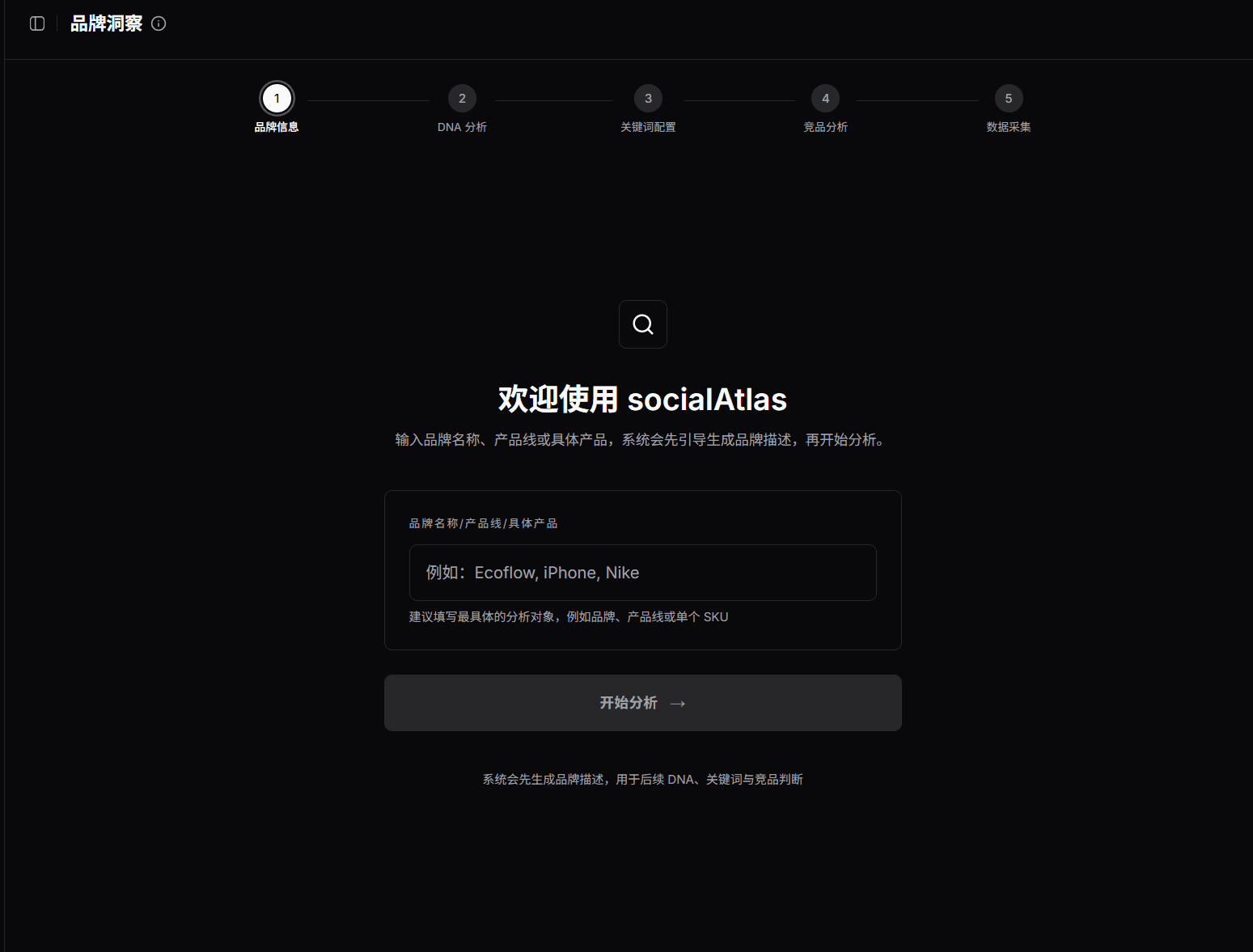
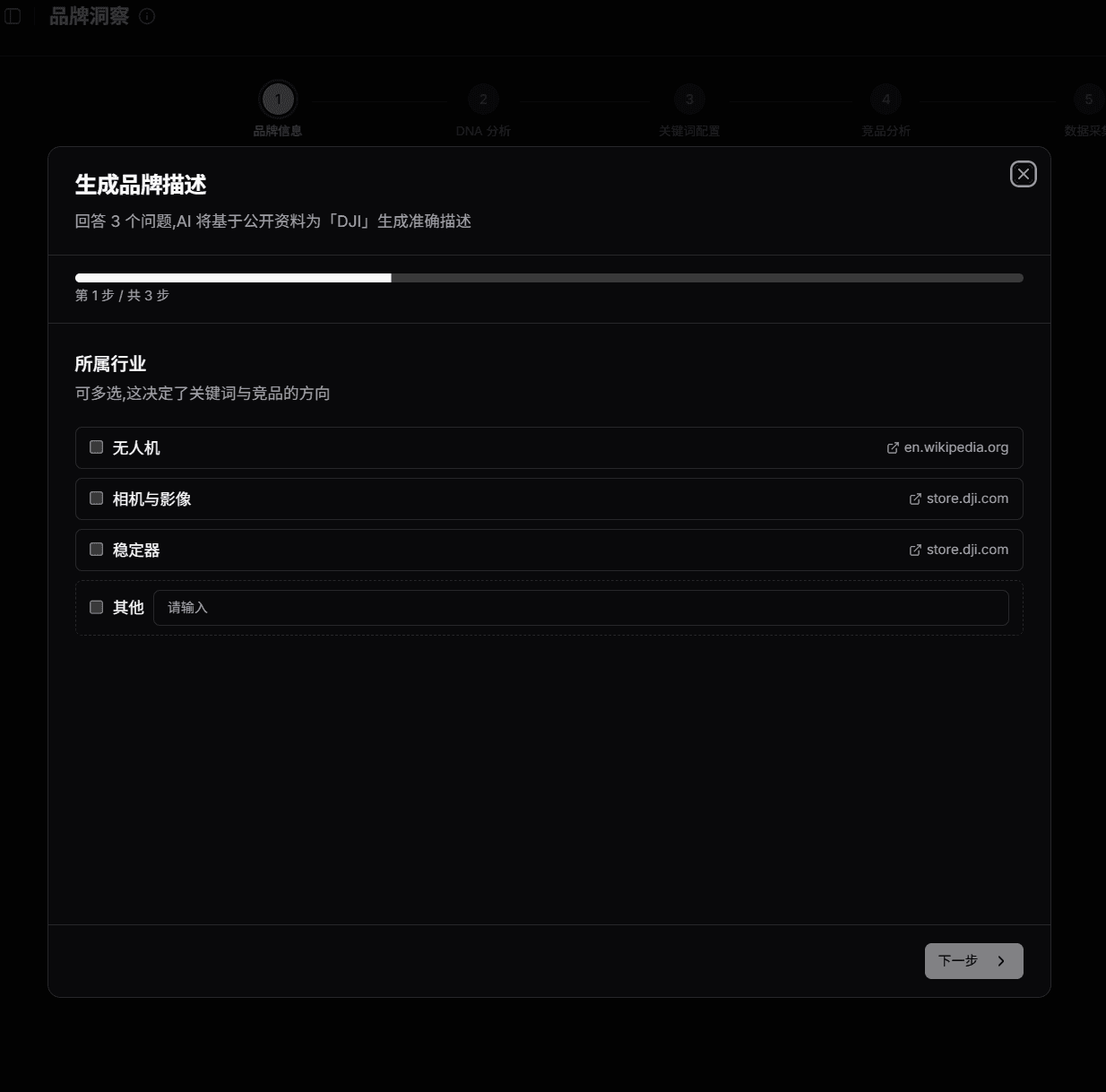
Enter a brand name / product line / specific product (the more specific the better — DJI, DJI Mavic, or even a single SKU DJI Mavic 3 Pro). After submitting, a 3-step mini survey helps the AI complete the brand description:
- Industry (multi-select, required) — drives keyword and competitor direction
- Main products / services (multi-select, required) — directly decides which "post-discovery keywords" get generated
- Target audience (multi-select, optional) — lets the AI consider the audience when judging sentiment and relevance
Renaming = wiping downstream
If you change the brand name in step 1 and confirm again, the generated DNA, keywords and competitor list are all cleared and the flow restarts.
Step 2 · DNA analysis
Fully automatic: the AI runs 4 things in parallel and returns results in ~10–30s — generate the brand description, identify the entity level (brand / product line / SKU), find the official website, and generate 5 DNA tags.
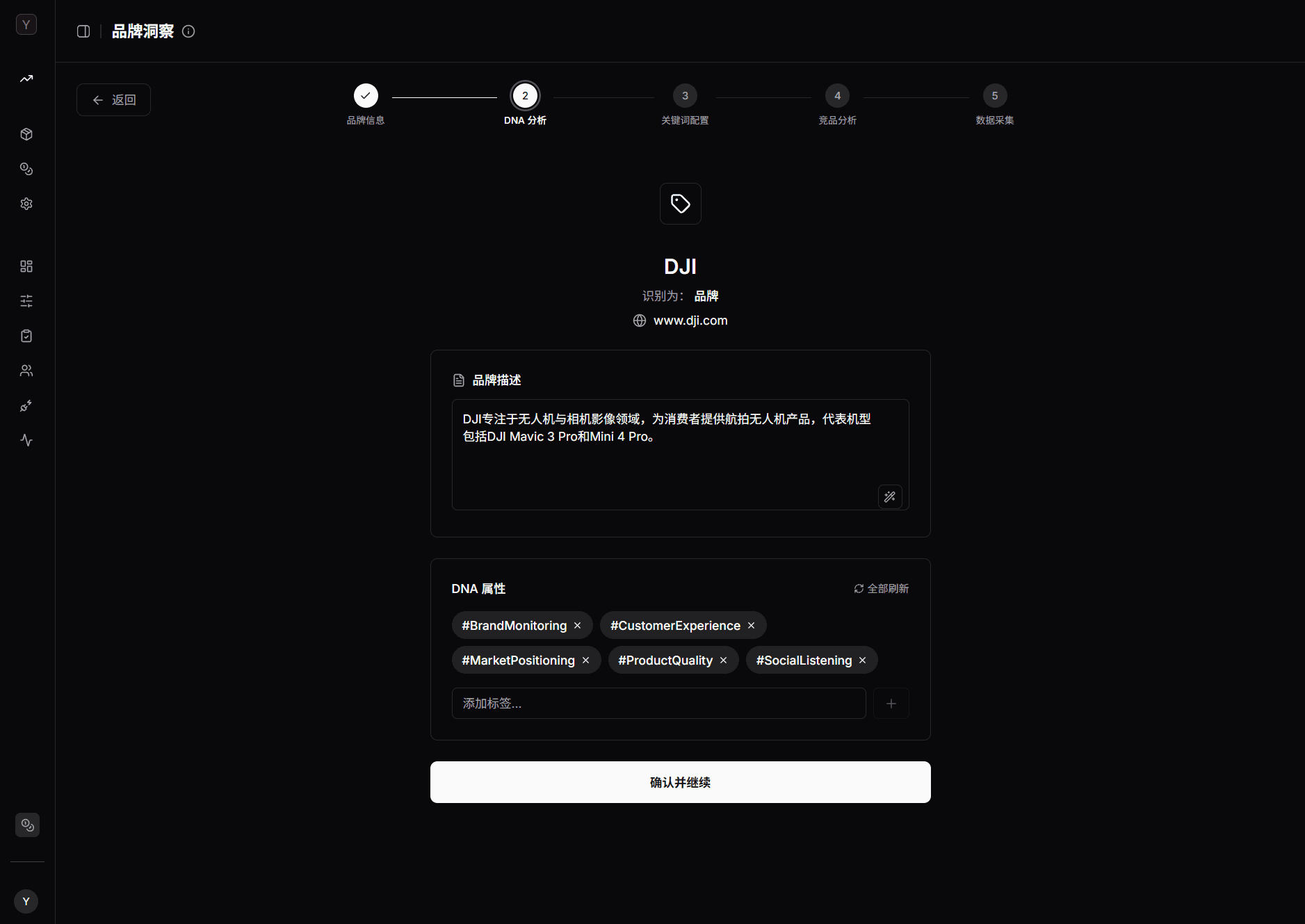
The result page is editable: normalized brand name, entity type, official site, brand description, 5 DNA tags. Confirm to continue.
Step 3 · Keyword configuration
Configure the fields that actually define collection scope: product categories, post-discovery keywords, monitored platforms, page count (10 pages by default, configurable from 1..10, max 10), and the optional Growth config. These are the key drivers of collection relevance — review each one.
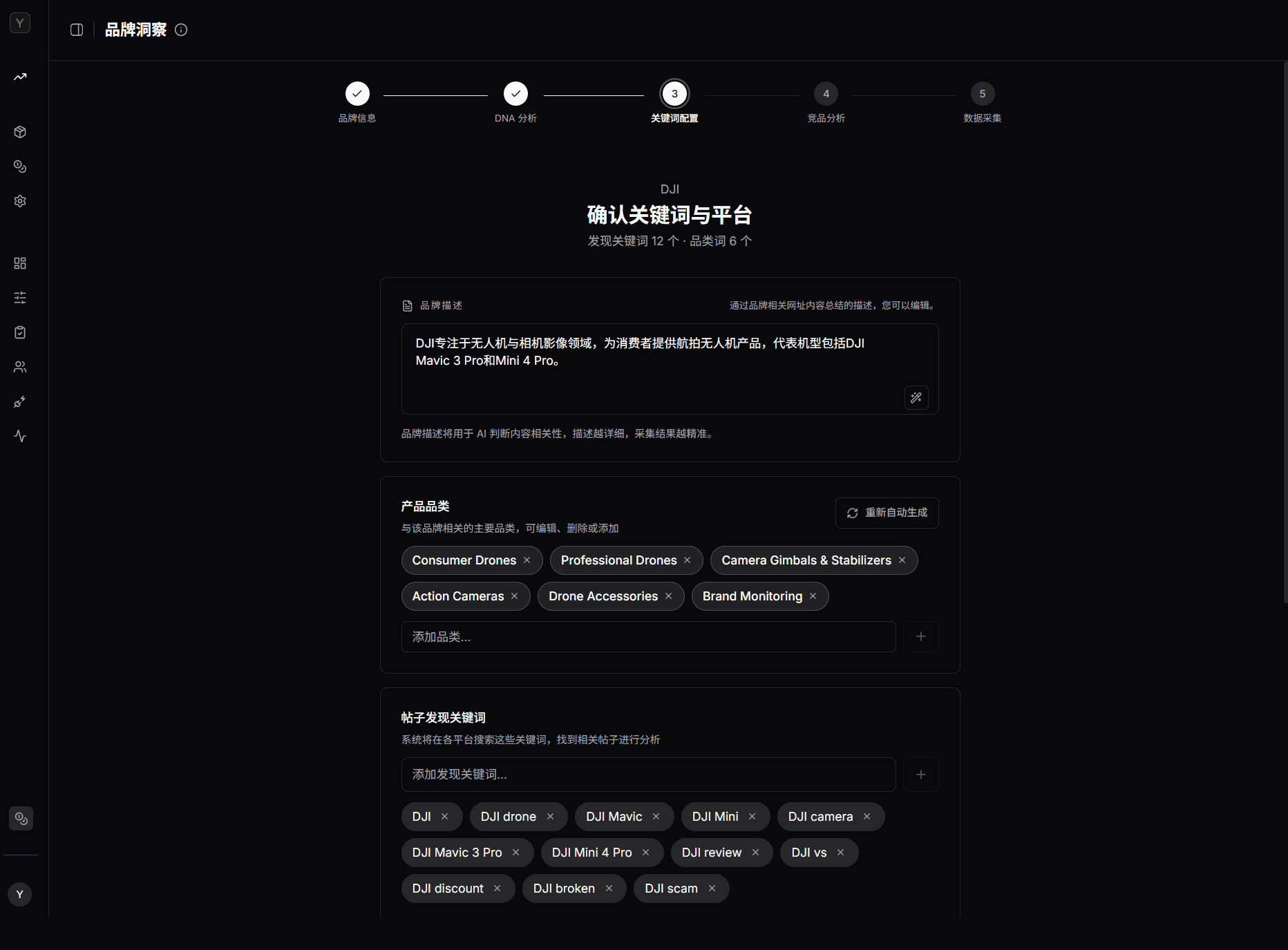
+10 / +12 credit platforms
Some platforms are paid add-ons and show a credit cost when selected — decide whether they're worth it before including them in monitoring.
Step 4 · Competitor analysis
The AI recommends competitors based on industry and products. Each competitor card has fields like name and keywords, and can be edited.
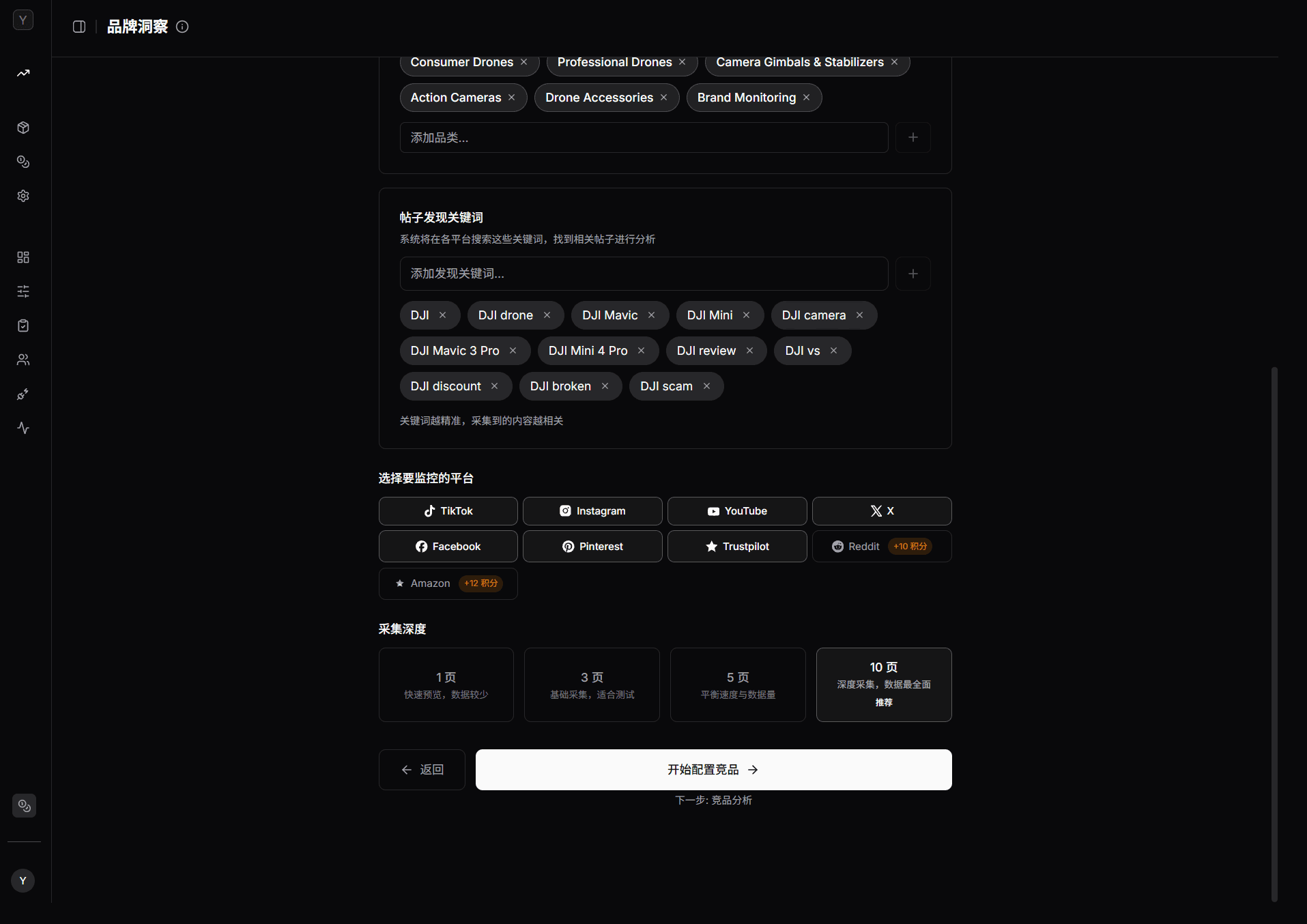
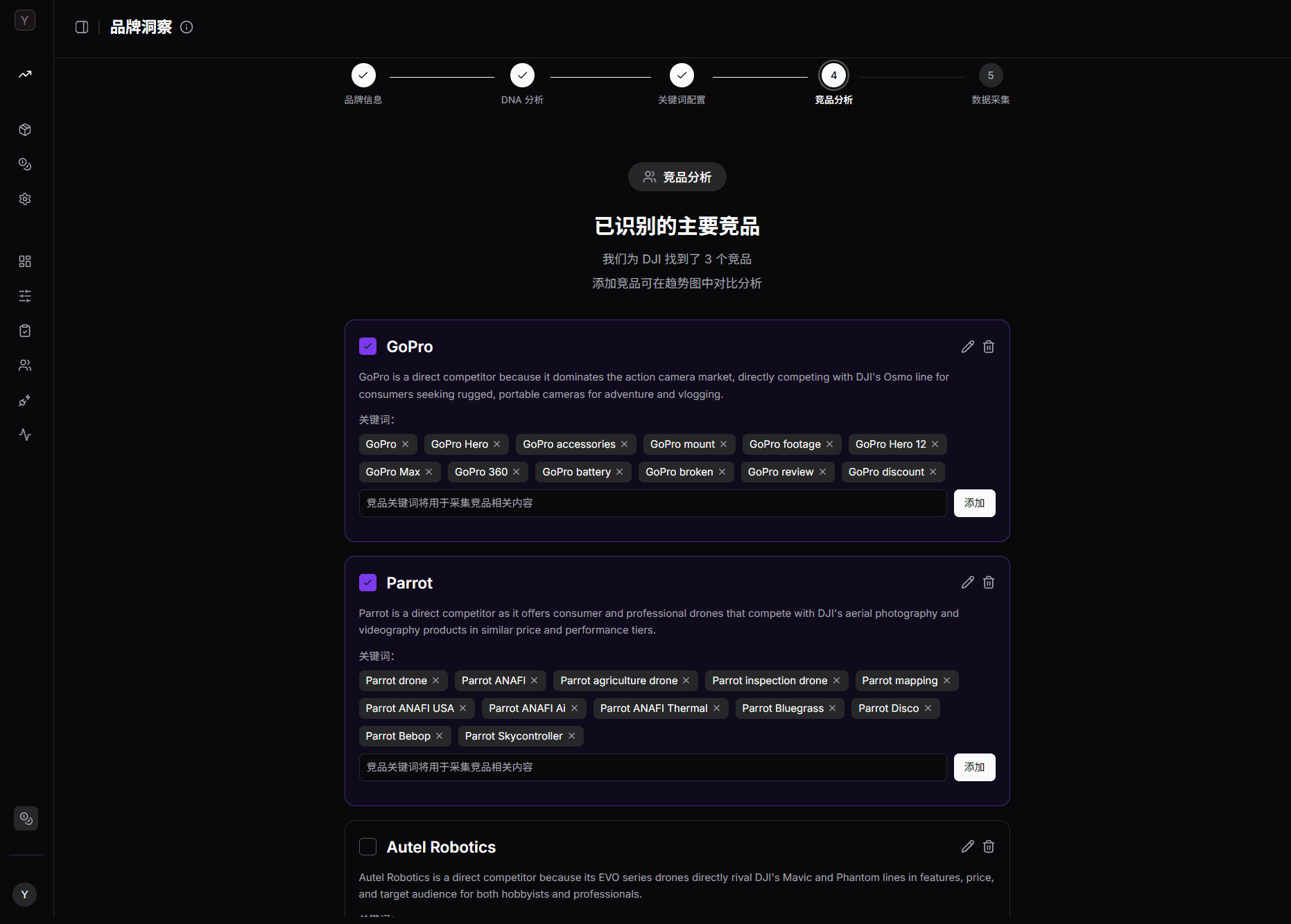
"Skip for now" still allows collection — the report's "Competitors" module will just lack a comparison. You can also add competitors later in the brand config (effective on the next collection).
Step 5 · Data collection
After confirming, an 10-platform parallel collection starts and the page enters a progress panel: a 5-stage timeline, top stat cards, per-platform progress cards (10), and an activity log.
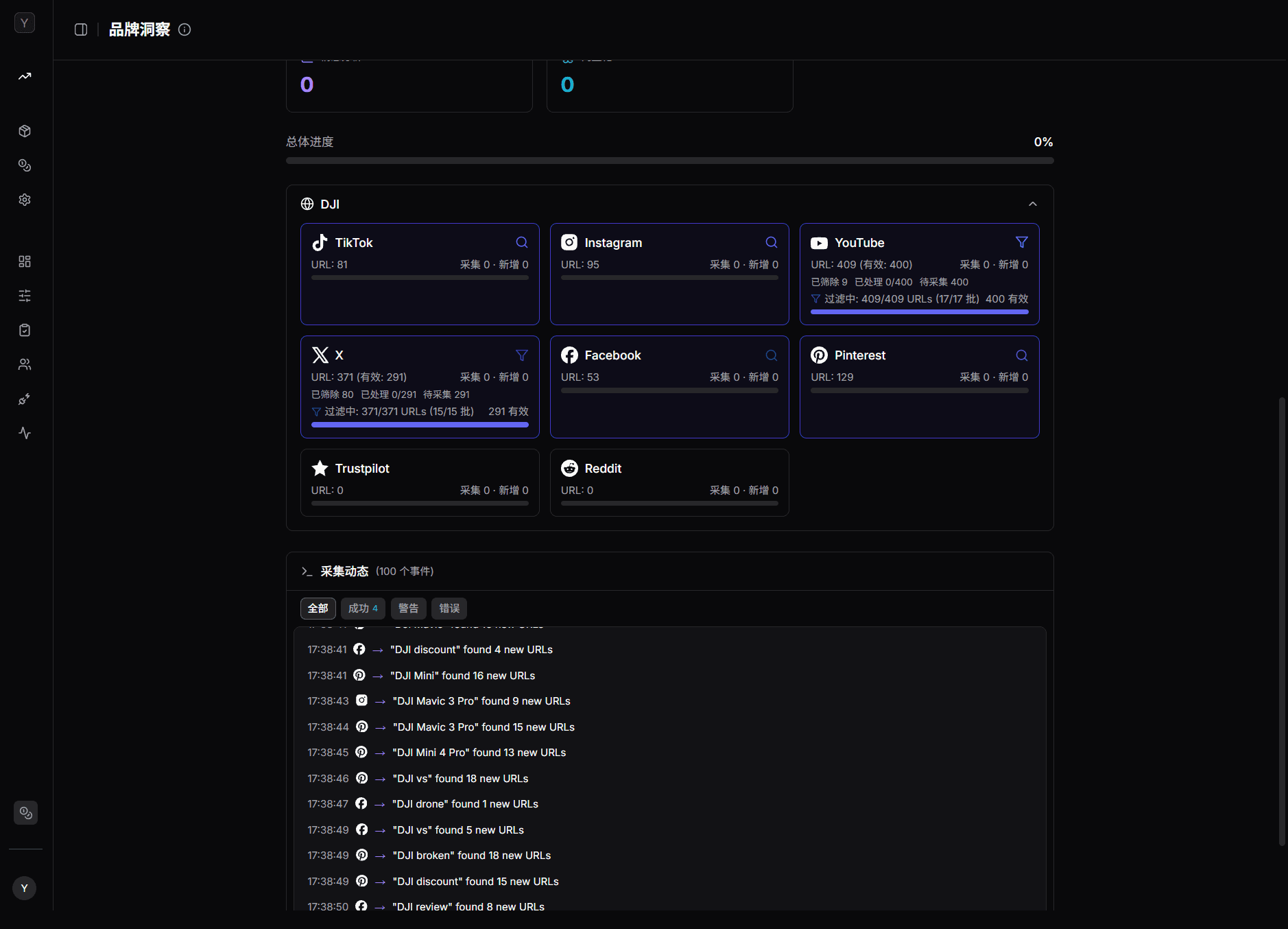
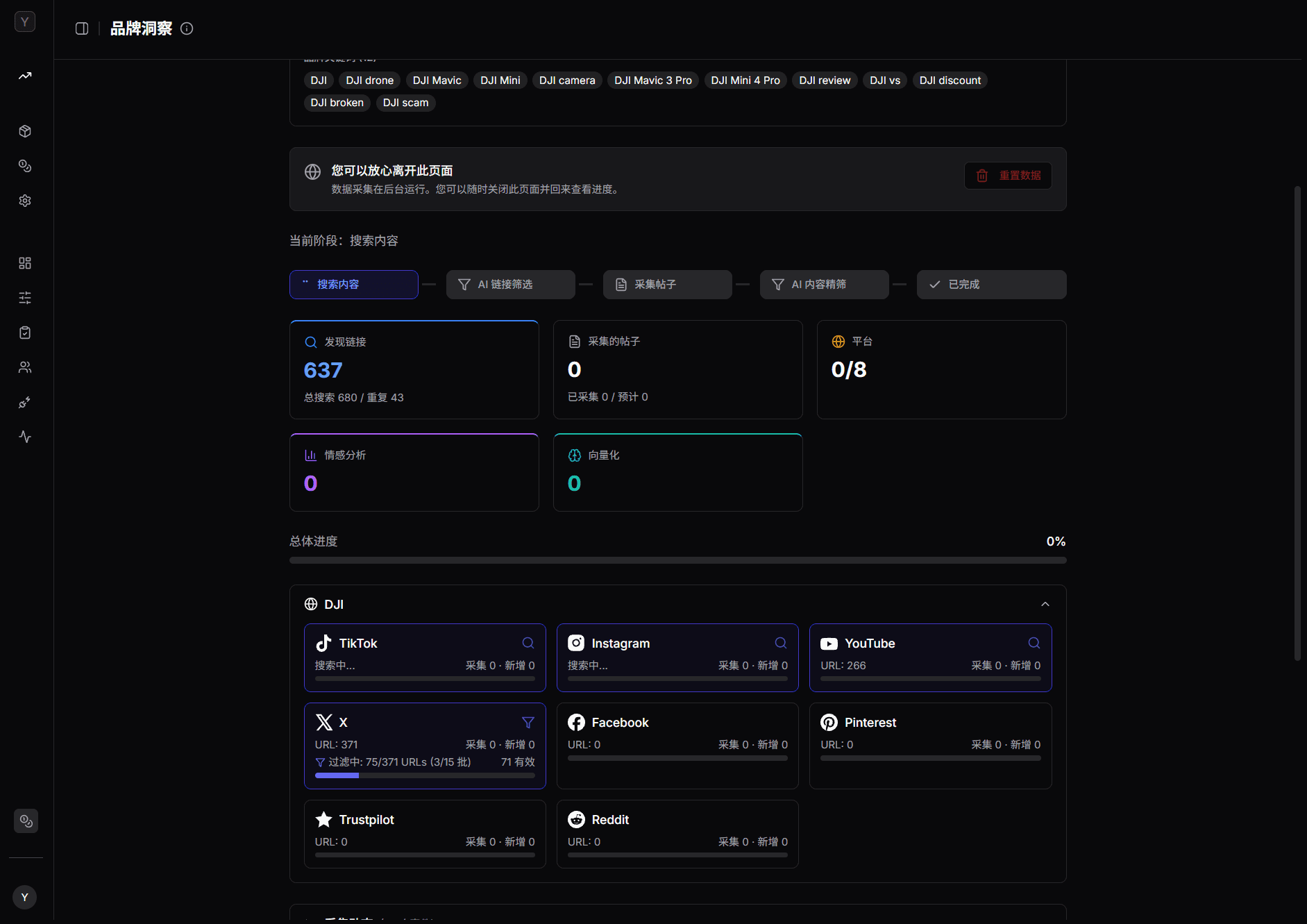
Expected duration
Collection is not a matter of minutes. It's affected by result page count, number of platforms, and number of keywords; under normal conditions about 90% of jobs finish within 3 hours. Feel free to leave and come back to check progress.
After collection
Once data is ready, read the five-module report. Start with the AI insights in ① Overview for the big picture, validate with the details in ②③④, then check originals or export CSV in ⑤ Data Center.